Let's face it, whether you're a DBA, IT Manager or sys admin - you are eventually asked the inevitable by your parents, mother-in-law (hint) or brother-in-law: The computer is soooo slow - is there something we can do?

What you will probably find is a computer running Windows XP, an out-of-date Anti Virus software that was pre-installed, missing patches, 17 toolbars for Internet Explorer, some AdWare and a boatload of other software that nobody needs. If it's bad then you'll also find some SpyWare and viruses.

It unfortunately requires multiple steps of corrective action to get garbled systems like that back up to normal, and so I created this list for myself so not forget steps along the way. You can change the order, but this order should be most effective. If most of the items listed are obvious to you, then you can still use the list as a simple check list.

1. Uninstall all unneeded software: This should speed up the computer right away and get rid of some of the resource hogs. Don't forget to get rid of any outdated AntiVirus software as well at this point.

2. Autoruns: Use the Sysinternals Autoruns tool to remove any applications that have nested themselves into one of the many autorun locations. I found the "Logons" and the "Services" tab to be most effective, though I recommend you check all of them. I also recommend saving the current setup prior to disabling things. After a reboot the computer should already be faster.

3. Remove Spyware: It's generally a good idea to make sure that no Spyware is present, and I recommend running Super Antispyware on the computer. They have a free home edition that works quite well - and don't get suspicious because of their cheesy web site.

4. Apply Updates: Now it's time to switch to Microsoft Update and install any available critical updates and hardware updates that are relevant. You can switch to Microsoft Update by navigating to Windows Update and clicking the "Microsoft Update" link on that page on the left or right hand side. I generally recommend including optional updates, such as IE 7 and Windows Media Player as well. They might not use them, but this ensures that they are only using software that is going to be patched.

5. Anti-Virus: If the computer does not have Anti-Virus software installed at this point, download either a free package (e.g. Avast, AVG, etc.) or purchase a commercial one if they don't mind paying an annual fee. Avast has the option to do an offline virus scan of your hard drive before the system boots, which I found quite useful.

6. Drivers & BIOS: Depending on the age of the system, chances are that at least some drivers are out of date, though it's much more likely on a new computer than it is on an old one. A first start is Windows Update, but checking the vendor's web site (some of them come with update software as well) usually yields better results and offers more recent drivers.

7. Defrag: I have a sort of love-hate relationship with defragging tools, and think that the benefits are often overstated. I have however seen many cases over my career where defragging does indeed improve performance. I don't think a daily defrag is necessary on a workstation, but a computer that has never been defragged in years can definitely benefit from it. I have used Raxco's PerfectDisk successfully on servers and workstations, and they have a fully functional 30-day trial available.

8. Hardware: In some cases, especially with older systems, it might help to upgrade the hardware. Upgrading memory is usually most effective, since it's both cheap and easy to install. I listed it as a last step, even though upgrading it right-away might make performing all the other steps more enjoyable (=faster). Don't just throw memory at the problem though, cleaning the machine up is the most important!


Or, you can do a re-install :-). Depending on the state of the OS, the above steps can sometimes take a very long time, and a re-install might be a better option - especially when the computer is infected with viruses and Spyware. As a matter of fact, if you still have access to the recovery CD and the computer wasn't overly customized (e.g. used only for email, web and pictures), then a re-install will almost certainly be a better option and take less of your time.

Hope this helps - and if all else fails then you can always install Linux ;-)
I recently read an article in the Hackin9 magazine (worth taking a look if you haven't heard about it) about alternate data streams (ADS) in NTFS. I had heard about this hidden feature in NTFS a long time ago actually, but over the years forgot about its existence again.

Background
In a nutshell, the NTFS file system, which was introduced with Windows NT 3.1, supports ADS - sometimes also referred to as "hidden streams". This means that you can attach or associate any number of files to an existing file, yet those files will not be visible to the vast majority of file management applications - including explorer and the "dir" command (Vista can show ADS with a parameter). One thing I find interesting about streams is that a lot of people in IT do not seem to know about them, even people otherwise very familiar with the Windows Operating System.

Now, streams are created and accessed by appending the "host" file name with a colon, followed by the name of the stream. Let's say you want to create a text file called financials.txt and hide it with winhelp.exe, you would run notepad C:\Windows\winhelp.exe:financials.txt. This will bring up notepad which will prompt you to create the file since it doesn't exist (since the alternate stream is basically a file). You can then save any text in the hidden file and save it. You will notice that the file you just created will not show up when you do a directory list (dir C:\Windows) and will also not show up in the Windows Explorer. Note that the timestamp of the host file will change however.

Now there are of course a variety of utilities that have been developed in the last 15 (!) years that will allow you to find hidden streams, but more on that later. Hidden streams still exist on Vista and later, though the feature seems to have become more restrictive.

There are apparently no limits as to how many streams one can associate with a file, or the type of file that can be associated. This means that you can associate an executable as much as you can an ASCII file. There are however some limitations as to how user mode applications (e.g. notepad) can access hidden streams. Let's go back to the previous example where we created the file financials.txt in winhelp.exe. If you open a command prompt and execute type C:\Windows\winhelp.exe:financials.txt, then you will not be able to see the contents of the hidden file. If you use notepad instead however, you will be able to see the file (notepad C:\Windows\winhelp.exe:financials.txt). This is probably because cmd.exe and its built-in commands up until Windows XP are not aware of alternate streams. ON a Windows XP machine I also could not open that same file if I tried to open it from inside notepad with the File -> Open command.

Creating Streams
Things get more interesting when you attach executables to files - and execute them! Let's say I wanted to hide popular windows game solitaire inside the file C:\Windows\wganotify.log and call the stream "calc.exe". Here is what you do:

type system32\sol.exe > C:\Windows\WgaNotify.log:calc.exe
start C:\windows\WgaNotify.log:calc.exe

Auditing Alternate Data Streams
Those of you interested in auditing will probably wonder how Windows tracks access to hidden streams in the event log. Well, there is good and bad news. The bad news is that object tracking (the famous event 560) does not show hidden streams, and instead only shows the "host" file name being accessed. Process Tracking on the other hand shows hidden streams in the expected manner. For the above example, a 592 event will show that file C:\windows\WgaNotify.log:calc.exe was executed.

Exploiting Streams
Scary, huh? This opens up a can of worms when you think about malware hiding inside otherwise innocent files - such as a log file. At appears as if most AntiVirus products do not detect hidden streams, at the same time there doesn't seems to be a significant number of mainstream malware applications out there are that rely on hidden streams. I'm not sure why that is, since this feature seems almost too good to be true for the writer of any malicious applications. One reason might be that malware writers mostly target home machines, and many of those computers are still formatted with the FAT(32) file system, which of course doesn't support ADS. This might change over time though, as more (home) computers use NTFS as their file system.

So after reading up on ADS, playing around with it last week, scanning my computer for hidden streams, I arrived at the inevitable question: What is the higher purpose of Alternate Data Streams? I mean, many applications don't support it, most people don't know about it, and a scan didn't reveal any hidden streams besides a couple inside some Microsoft installers that apparently use them as some sort of meta data.

As it turns out, ADS was created for compatibility with the Macintosh HFS file system, which uses a data fork and resource fork to store data in a file (OS X now uses the HFS+ file system). But over the years (it's been 15 after all) some developers at Microsoft decided to utilize this feature. For example, when you specify summary information about a file (right-click -> properties -> summary), then this information will be stored in ADS.

As mentioned earlier, there have been some improvements in regards to ADS with Vista and later. Vista can now show alternate streams with the /R switch of the "dir" command. My preliminary research also shows that hidden streams can no longer be executed in Vista or later - so what we did in the above example will not work. I think that's a good thing, since there really is no practical reason (unless you develop malware) to do this. The screen shot below shows the output of a regular dir command and the dir /R command on a Windows 2008 server (note the file setupact.log).

ADS_Win2k8.jpgIn my humble opinion, Microsoft should get rid of alternate streams in future versions of Windows, and instead come up with some sort of structured way of embedding meta data in files. Anything contained in meta data should be non-executable and limited in size, e.g. 256kb.

Discovering Streams
So what does all this mean for you, the person responsible for security in your network? How can you find hidden streams and detect if streams are being added to files?

There are many free third-party utilities out there that show and manipulate hidden streams, but the discovery of this feature led us to extend the functionality of the File Monitoring feature of EventSentry to include the automatic detection of hidden streams in real-time. This means that any stream added, modified or removed from a file in a monitored location will be detected by EventSentry.

We have also developed a new command-line tool, adslist.exe, that will list all alternate data streams on a directory and optionally its sub directories. The tool is part of the NTToolkit v1.96 and I recommend that you schedule to run this tool with the Application Scheduler feature of EventSentry on a regular basis, or schedule it with the Windows Task Scheduler and email the results (adslist.exe C:\ /s). The advantage of using EventSentry is that the results of adslist.exe can automatically be emailed to you only if alternate streams were found. You can do this because the %ERRORLEVEL% is set to 1 by adslist.exe when one or more streams are found. The screenshot below shows what this would look like in the email sent by EventSentry:

EventSentry_ApplicationScheduler_ADSList.pngManipulating Streams
While Microsoft doesn't offer a tool to search for and discover alternate data streams, they do offer a good explorer-extension that allows you to view and delete alternate data streams. You can download it from http://download.microsoft.com/download/F/C/6/FC6943EB-790A-44AA-B32D-14ED7E22FD5D/NTFSExt.exe, the zip file contains the source code as well as another utility to create hard links on NTFS volumes. After extracting the archive, navigate to the \StrmExt\ReleaseMinDependency folder and run regsvr32 StrmExt.dll. You will then have an additional tab when viewing file properties in explorer called "Streams":

StrmExt.jpgAnother way to get rid of hidden streams is to copy a file to a FAT[32] volume and then back to the NTFS volume, or - if you don't have a FAT[32] volume available - simply compress and uncompress the file again.

Well, I hope this gives you a better understanding of alternate data streams, even if you were already familiar with them. Like I mentioned earlier, it doesn't appear as if ADS is used for evil in a large scale quite yet (so no reason to panic!), but I believe it is better to be safe than sorry.


Recently, Adobe published security bulletin APSB08-15 that affects almost all versions of the Adobe Reader and could allow attackers take control of a machine. Since most corporate computers have Adobe Reader installed, patching a vulnerability like this quickly and efficiently is crucial. If the computers running Adobe Reader are part of a Windows 2000 (or later) domain, then you can easily utilize the Active Directory's Software Installation feature to push this patch out. Deploying updates and patches through Group Policy is easier than you think and can save you hours of work.

Note: You can use Group Policy to deploy any application update, as long as the patch is available as a MSI file. We're just using this particular patch as an example.

Since the Adobe Reader Updates comes in an executable instead of an MSI, we need to first extract the MSI file. Luckily, Adobe does give you the steps needed to do this here. After following those steps, you will have a folder which includes the MSI and some other needed files. Put these on a share that all computers can reach. It is generally a good idea to give everybody READ access to this share and the underlying NTFS permissions.

Next, we need to open Active Directory Users and Computers. Right click on an OU you want this to apply to, in our case it is called "Workstations". Then choose properties and click on the "Group Policy" tab.

Now you should see a list of GP objects that apply to that group (if any). Click "New" to create a new policy. Give it a descriptive name such as "Security Update for Adobe Reader". Click on it and choose "Edit".

GroupPolicySoftwareInstallation.jpgThe Group Policy Editor will now come up and allow us to choose the options we want. Expand "Computer Configuration" -> "Software Settings". Then, right-click "Software installation" and choose New -> Package.We need to browse to the network share (e.g. \\YOURFILESERVER\SoftwareUpdates) that contains the MSI file for Adobe Reader, then pick the MSI file and click Open. It will ask you which deployment method to use, you can choose Assigned for this. Remember that this file share needs to be accessible to all computers that need to install this update.

The newest version of Adobe Reader will now be deployed to that group. You can also assign that Group Policy to other groups of computers that you want it to apply to.

Using a mechanism like Group Policy to deploy application updates has several advantages of course:

  1. It's included with Windows for "free", so there is no additional cost.
  2. Updates are installed automatically, no reason to physically touch the workstation.
  3. The updates are always installed, you don't have to rely on the users to patch their applications
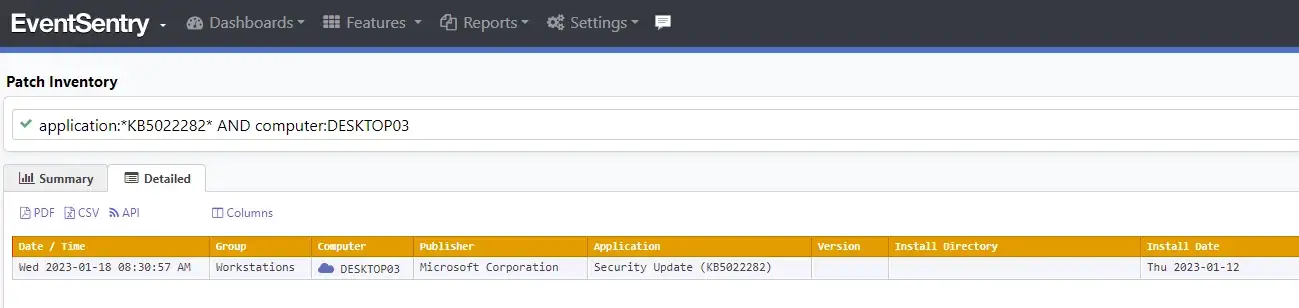
Most updates that are assigned to computers are installed when the computer reboots, so it will take a day before this update will be installed. If you are running EventSentry, then you can use the Software Inventory feature to make sure that the update has been installed on all computers.

P.S.: You can also deploy Firefox this way using FrontMotion's Firefox MSI.
I'm happy to briefly announce the release of Gateway IP Monitor v1.40 which includes the ability to update a DynDNS host name. We received many feature requests over the last few months, and the ability to update a DynDNS host name was probably the most important one. This feature has been on the list for quite some time, and we finally got around to adding it.

We also cleaned up the user interface (we now have icons!), fixed a few bugs and added the ability to customize the email message.

Remember that Gateway IP Monitor runs as a service and can perform a variety of actions upon an IP address change:

  • Sends an email (SSL support)
  • Updates a DynDNS host name
  • Executes a program
  • Logs the IP address to a file

Remember that we offer support for Gateway IP Monitor through our forums, and please do send us feedback.

Enjoy!
We decided to release a new version of our free NTToolkit to which we added three useful new utilities and fixed a few minor bugs. You will find that some of these utilities can already be used in conjunction with the Application Scheduler feature of EventSentry, extending its monitoring capabilities to verify database connections, web pages and more.

1. CheckDB
CheckDB, as the name implies, checks a database connection through ODBC. This lets you not only verify that a database server is up, but can also check that a database is online and you can optionally run a SQL statement of your choice.

2. CheckURL
CheckURL is the HTTP version of CheckDB, and allows you to detect changes in web pages (through checksums) and looks for text inside web pages. With CheckURL you'll know when a web page changes or when a particular string is or is not included in a page.

Both CheckDB and CheckURL can log output either to the console or the event log, making it easy to receive alerts from both utilities through EventSentry or any other log monitoring software for that matter.

The application scheduler feature of EventSentry can already log output from command-line utilities to the event log, even when those applications are not "event log aware". This feature is extremely convenient for SysAdmins that run a lot of scheduled scripts, since the output from a script can immediately be sent to you - for example via email.

But back to the NTToolkit. The third new utility is NTPClient.

3. NTPClient
NTPClient retrieves the time from a NTP server and optionally adjusts the local time to match that of the server. NTPClient supports the NTP up to version 3 and takes network latency into consideration when setting the local time. Please note that NTPClient does not run as a service, and as such will have to be called repeatedly if you wish to keep the time of a computer synchronized.

EventSentry v2.90 will actually include a new System Health feature based on this utility and allow you to keep the local time of a monitored computer in sync.

As always, we hope the three new utilities will help you get your job done more easily.

We have more software releases planned for this summer. EventSentry 2.90 will be released in early July and we will also be releasing a new version of AutoAdministrator (2.0), in June/July with a completely re-designed interface and several new features. I will report more on that in late June prior to the release.

There is certainly a lot of talk about the benefits of using Vista, but a lot of administrators and users seem to be avoiding it and instead hold on to Windows XP - which now appears to have a better reputation than ever! Well, here is a small reason to upgrade to Vista or Windows Server 2008.

Microsoft introduced a new event, 4964, called the Special Groups Feature. The purpose of this feature is to log event 4964 to the security event log when a member of a group you specify logs on to a computer.

So let's say you want to know when a member of a local Administrator group logs on to a computer (and with EventSentry you could get an email when that happens for example), then you can accomplish that with the special groups feature.

In order to use this feature you need to do three things:

  • Determine the SID of the group(s) you want to monitor
  • Specify the SID(s) of the groups you want to monitor in a registry key
  • Ensure that you are auditing the Special Logon Feature (enabled by default)
One way to obtain the SID of a group is to use the getsid.exe tool which is part of the Windows XP SP2 Support Tools and other Microsoft Resource Kits. Note that the primary purpose of this tool is to compare the SID of two user accounts (so it requires you to specify two user/group accounts), but you can just enter the same group name twice to get around this. Here is an example output of the tool:

getsid \\mydc "Domain Admins" \\mydc "Domain Admins"

The SID for account BUILTIN\
Domain Admins matches account BUILTIN\Domain Admins
The SID for account BUILTIN\Domain Admins is S-1-5-21-9817441204-4587651373-9817264971-512

As you can see you need to point to tool to computer where the group exists, in our case I used a domain controller since I want to monitor if somebody from the Domain Admins group logs on to the computer. If you monitor a built-in group (e.g. Administrators) then you will see that the SID is much shorter and the same across all your computers.

Now that we know the SID, we can specify it in the registry. Navigate to key HKEY_LOCAL_MACHINE\System\CurrentControlSet\Control\Lsa\Audit and create a new String with the name SpecialGroups.

The value for this new string will be the SID of the group you want to monitor, and you can separate multiple SIDs with a semicolon. For example:

S-1-5-32-544;S-1-5-32-123-54-65

You do not have to reboot after making this change, it is effective immediately with the first subsequent login. The event that is being logged will look similar to this (screen shot from the EventSentry Web Reports):

Special Groups Logon 4964 ScreenshotThe relevant information is shown in the lower part of the event in the New Logon section. Security ID shows the user that logged on, and Special Groups Assigned shows the group the account is a member of (of course this group has to be specified in the registry).

Voila. This feature probably makes most sense on critical servers, though I would recommend enabling it on all workstations as well since you probably want to know if a member of the local Administrators group logs on. But of course this also means that you need to be running Vista on your network :-).

Since this feature needs to be activated using the registry, you can use AutoAdministrator to push this registry change to multiple computers. AutoAdministrator has actually been rewritten from scratch and we will be releasing a new version 2.0 very soon.
Anybody who has used the built-in event viewer that comes with Windows more than once, has probably seen the message “The description for Event ID ( 50 ) in Source ( SomeService ) cannot be found. The local computer may not have the necessary registry information or message DLL files to display messages from a remote computer.” when viewing certain events. This message occurs more often when viewing events on a remote event log, but it appears often enough on the local machine as well.

event_message_id_cannot_be_found.pngI will explain this dubious error message here, but before I do I will explain how messages are in fact logged to the event log. After reading this you should have a much clearer picture about how applications log to the event log and how you go about troubleshooting this “error”.

The framework that Microsoft created for the event log, back in the NT 3.51 days, was actually quite sophisticated in many ways – especially when compared with the more simplistic Syslog capabilities (though Syslog still has some unique features).

A key feature of event logging in Windows is the fact that an application, at least when using the event log framework in the way it was intended to be used, will never actually directly write the actual message to the event log – instead it will log only the event source and event id, along with some properties such as category and insertion strings. The framework also supports multiple languages, so if you open an event on a French Windows, then the event will display in French (of course assuming that the message file from the vendor supports that) instead of English.

Let’s look at an example – using EventSentry - to understand this better. When EventSentry detects a service status change, it will log the event 11000 to the event log that reads something like this:

The service Print Spooler (Spooler) changed its status from RUNNING to STOPPED.

When EventSentry logs this event to the event log, you would expect that the application does (in a simplified manner) something like this:

LogToEventLog(“EventSentry”, 101000, “The service Print Spooler (Spooler) changed its status from RUNNING to STOPPED.”);

However, this is NOT the case. The application logging to the event log never actually logs the message to the event log, instead the application would log something similar to this:

LogToEventLog(“EventSentry”, 101000, “RUNNING”, “STOPPED”);

(Note that the above example is for illustration purposes only, the actual code is somewhat more complicated)

So, our actual string from the event message is nowhere to be found, and that’s because the string is embedded in what is referred to as the “Event Message File”. The event message file contains a list of all events that an application could potentially log to the event log. Here is what an event message file looks like before it is compiled:

MessageId=10100
SymbolicName=EVENTSENTRY_SVC_STATUSCHANGE
Language=English
The status for service %1 (%2) changed from %3 to %4.
.
Language=German
Der Dienststatus von Dienst %1 (%2) aenderte sich von %3 auf %4.
.

Notice the numbers contained in the string that start with the percentage sign. These are placeholders for so-called insertion strings, and they make it possible to make the event log message dynamic, since an application developer can’t possible account for all imaginable error message or information that might be accumulated during the runtime of the application. For example, an application might log the name of a file that is being monitored to the event log, clearly this can’t be embedded into the event message file.

Instead, the application can insert strings (hence, insertion strings) into the event message during run time. Those strings are then stored in the actual event log, along with all the other static properties of event, such as the event id and the event source.

Event message files are usually DLL files, but event resources can also be embedded in executables – as is the case in EventSentry, where all events are contained in the eventsentry_svc.exe file. This is generally a good idea, since it reduces the number of files that have to be shipped with the software and it also prevents you from “losing” the message DLL.

You can browse through all embedded events in a message file by using the event message browser that is included in the free NTToolkit which you can download here. Simply launch the application, select an event log (e.g. Application), select an event source (e.g. EventSentry), and browse through all the registered event messages, sorted by the ID.

So now that we know how Windows handles event messages internally, we can go back to the original problem: “The description for Event ID ( 50 ) in Source ( SomeService ) cannot be found.”. The Windows Event Viewer logs this message for one of the following reasons:

    * No message file is registered for the source (e.g. SomeService)
    * The registered message file does not exist or cannot be accessed
    * The specified event id is not included in the message file

If the message file is not registered, then this is probably because the application wasn’t installed correctly, or because it has already been uninstalled by the time you are trying to view the event message. For example, if the event message was logged before the application was uninstalled, but you are viewing the event after the application was uninstalled, then you will see this message.

If the event you are trying to view is important, then you can try to fix the problem yourself by either fixing the registry entry or locating the missing event message file.

The registry location depends on only two factors: The event log [EVENTLOG] the event was logged to as well as the event source [EVENTSOURCE].

HKLM\System\CurrentControlSet\Services\Eventlog\[EVENTLOG]\[EVENTSOURCE]

(Replace [EVENTLOG] and [EVENTSOURCE] with the respective values, and view/add/edit the value EventMessageFile. This is the value that points to the message file)

If this value doesn’t exist, then you can add it as either a REG_SZ or a REG_EXPAND_SZ value. You can specify multiple message files with a semicolon.

regedit_eventmessagefile.pngIf the message file specified in the value doesn’t exist, then you can simply copy it into the appropriate location – assuming you can get a hold of it that is :-). Oracle is notorious for not including the message file, in particular with the Express Edition.

A final note on message files for those of you haven’t had enough yet: You can use message files not only to translate event messages, but also for categories, GUIDs and more. Some of the values you might find (mostly in the security event log) are CategoryMessageFile, GuidMessageFile and ParameterMessageFile.

Well, this article turned out a lot longer than I had anticipated, but hopefully you will have a better understanding as to why this message is logged and what you can do about it.

It's been almost 15 years since Microsoft released the first NT-based operating system, Windows NT 3.1, on July 27th 1993. So it came as a bit of a surprise to me that not even the brand-new Windows 2008 ships with an easy way to show the current uptime of the OS.

Linux/Unix users are probably quite familiar with the convenient uptime command, which shows how long the OS has been running and also includes a current load average.

Windows still doesn't ship with such a tool (I will refrain from posting sarcastic assumptions as to why they might not want to do that) which makes it difficult for any SysAdmin to quickly determine how long a machine has been up and running. One can of course dig through the System Event Log to find the 6009 event or create a script, but I'd hardly call that convenient.

That's why, a while back , we developed the free uptime.exe application which is included in our free NTToolkit. Simply run uptime.exe and it will show you the uptime of the system you are logged in as, and keep counting until you abort with CTRL+C:

  Uptime:  11 days,  4 hours, 33 minutes,  4 seconds

Uptime.exe also accepts the /onetime parameter which just displays the current uptime and returns, and you can also display the uptime in seconds with the /secs command line switch. This might be useful if you want to use uptime.exe in batch files for example.

You can download uptime.exe from http://www.netikus.net/products_downloads.html, and if you choose the version without the installer then you don't even have to log in. The setup version of the NTToolkit allows you to extract the MSI however, which you could automatically deploy to all of your servers. You could then take advantage of all the tools in the NTToolkit without having to download or install anything.

The upcoming 2.90 release of EventSentry will also be able to track the uptime of all monitored servers, so that you can easily view and compare the uptime of one or more servers through our web reporting interface.

Are you looking for a small tool that would make your life as a SysAdmin easier? Just send an email to suggestions {{AT}} netikus [[DOT]] net.
In my previous post I explained when and why 560 events are logged, and roughly explained why they are only of limited usefulness since they only log what a user could have done, not what they actually did.

Starting with Windows XP and Windows Server 2003, Microsoft introduced the so-called operational event 567. This event is supposed to enhance the auditing experience by not only logging what a user could do, but instead what he actually did! Does this sound too good to be true? Well, I guess that's because it almost is.

According to Eric Fitzgerald's Object Access Auditing Overview (Eric is the former head of the Windows Auditing Team), the 567 event should be logged in between the 560 (open handle) and 562 (close handle) events.

As such, the idea behind the 567 is simple:

1. User opens text file backup.cmd with a text editor. Event 560 is logged which includes all the rights the user will have to the document backup.cmd.

2. The user hits the save button, and Windows logs event 567, most likely including the WRITE_DATA access mask which indicates that data was written to the file. Note that the 567 event will not, unlike the 560 event, include the file name in the message text, but instead just the value of the handle that was included in the previously logged 560 event. As such, to make use of that event, you will have to go back to the 560 event to figure out which file was affected by the subsequently logged 567 event.

3. When the user closes the file, event 562 is logged. This event also only includes the value of the handle which was returned by the previously logged 560 event.

Well, you can imagine that I got pretty excited after doing all the research and was ready to see that 567 event in action on our production and test network. So I enabled auditing on a folder and started creating files, modifying files and so forth. Events 560 and 562 were logged just fine and as expected, but I had difficulties seeing a 567 event - it just wasn't there. Since there is no option to turn event 567 on or off, I wasn't exactly sure what I was doing wrong. I was ready to give up - after all I was quite tired that night, but after playing around more, trying different operating systems, different auditing options, logging on locally etc. I finally saw the 567 event. Hooray!

All seemed well until the next morning, when I tried to continue last night's work and got stuck again. No 567 event. I then remember Eric's blog entry, where he pointed out that event 567, due to a bug, wasn't logged when files were accessed through a file share unless you had WinXP SP2 or Win2k3 SP1. Surely this couldn't be a problem in my network, since I was running SP2 on XP and Windows Server 2003. Well, it was the best hint I had to work with, and so I compared local and remote file access auditing to see if it would make a difference.

Bingo!

As it turned out, event 567 was only logged when I accessed files locally, that is if the file that was audited resided on the same machine that I had logged on to. As soon as I accessed a file through a file share (as most people do), event 567 was not logged.

I was still confused though, after all I had read about the 567 event not only in Microsoft's documentation and blog, but also at other trustworthy sources and still thought that maybe something was off in my environment. Maybe I was missing a hotfix or some other secret ingredient that would prevent my server from generating the highly desired 567 event.

So expanded my tests to another test network, another production network, a SBS 2003 network and so on and so on. The results were always the same, event 567 was not logged when I accessed the audited file through a file share.

Since I ran out of options and the existence vs. non-existence of the 567 affected development of a new EventSentry feature, I opened up a support call with Microsoft's Enterprise Support. After an hour of mostly hold time and an actually helpful engineer, it turns out that event 567 is indeed only logged sometimes. The engineer didn't want to be too specific, but the bottom line was that one should not except the 567 event to always be logged when a 560/562 event pair was logged. Asking why that was the case, I was told that implementing event 567 "correctly" would have required a kernel change which was not an option. So there you have it.

I stick to my "research" however - event 567 is indeed logged as long as you are accessing the audited files locally, and not through a network share. Otherwise you will have make do with the 560/562 events.

Of course you can also upgrade to Vista or Windows Server 2008, which log event 4663 (= 567 + 4096) regardless of whether you access the file locally or remotely. This event also includes the full filename and path, so collecting the related 4656 and 4658 events is not necessary. I have verified it with both, and it works very well indeed.

Thankfully, EventSentry 2.90 (when released) will take most of that burden of you and perform some additional  work for you to give a crisp idea of who is modifying/creating/deleting which file at what time.

Enjoy!
One of the upcoming features in the 2.90 release of EventSentry is file object tracking, which will - as the name implies - track file access!

EventSentry already tracks process activity by intercepting and analyzing the 592 and 593 security events that are generated when a process starts or exits respectively; we also track logons and logoffs by intercepting and analyzing the various logon (e.g. 528) and logoff events. Tracking object access turns out to be a bit more involved as process and logon tracking, since Windows 2003 and earlier don't actually log when an object is modified, but instead log when an object handle is being returned to the caller. I would like to mention here that object auditing has been drastically improved in Vista and later, but more on that next week.

But before I explain the 560, 562 and the problematic 567 events, let's make sure we have everything setup for auditing to work.

1. Make sure that "Audit Object Access" is active on the machine where the files will be accessed. In most cases this will be your file server, and you will probably want to configure this with a group policy object and apply this setting to all machines from which you plan on collecting object audit events.

2. Once auditing is enabled on the machine, you will have to tell Windows which files you effectively want to audit, since generating an audit event for every single file by default would fill up your security event log quicker than you could get a cup of coffee. To audit a folder, bring up the security properties of the folder, click advanced and select the "Auditing" tab. Here you will specify which accesses and users will be audited, and I recommend that you always use Everyone when adding an audit entry to ensure that all object access is audited. I also recommend only auditing the access type you really care about. since 560 events can quickly fill up your event log (and consequently any consolidated database you might have) and there is no reason to monitor accesses you're not concerned with (e.g. ReadAttributes).

Now to get back to the 560 and 562 events, this is better explained with an example. In Windows, when you need to read or write to a file, you usually call the CreateFile() API function which will return a handle to the object (=file in this case) you are about to access. When calling CreateFile(), you tell Windows which access to the file you need. For example, when you simply need to read from a file then you can pass GENERIC_READ (or the more specific FILE_READ_DATA) for the dwDesiredAccess parameter.

Assuming that you are allowed READ access to the file, Windows will return a handle to the requested file (that you can now use in subsequent ReadFile() operations). And this is exactly where Windows logs the 560 Audit Success event (assuming of course the access type and user match the auditing enries), essentially documenting that an object handle was returned. While this all sounds nice and dandy, the problem with the 560 event is that it doesn't actually tell you what the caller ended up doing with that handle. Even if the caller where to close the handle right away with CloseHandle(), the 560 event would have still been logged - even if the caller never actually accessed the file.

The same holds true for potential write access to a file. If I access a file with the GENERIC_WRITE access right, then Windows will log a 560 event that looks similar to this:

Object Open:
Object Server: Security
Object Type: File
Object Name: E:\Folder\Customers\Sheet.xls
Handle ID: 20084
Operation ID: {0,93244500}
Process ID: 4
Image File Name:
Primary User Name: DC1$
Primary Domain: ESDOMAIN
Primary Logon ID: (0x0,0x3E7)
Client User Name: support.engineer
Client Domain: ESDOMAIN
Client Logon ID: (0x0,0x58C5419)
Accesses: READ_CONTROL
ReadData (or ListDirectory)
WriteData (or AddFile)
AppendData (or AddSubdirectory or CreatePipeInstance)
ReadEA
WriteEA
ReadAttributes
WriteAttributes

At first glance, one would assume that support.engineer wrote to the file, after all WriteData is included in the listed Accesses. This is far from accurate however, since the user could have closed the file right-away again (without ever reading or writing data from/to it) and the event would have still been logged in exactly the same manner.

This means that unless you manually verify some properties of the file, for example the access stamps, size or checksum, the 560 events only tell you what a user could have done, not what they actually did.

When the calling process is done working with the file, it will call CloseHandle() to close the handle it had previously opened. As such, a 560 event is always followed by a 562 event that includes the same handle ID as the original 560 event.

At some point during the Windows XP development, Microsoft seems to have realized that the 560 events are limited in their usefulness (at least for authorized access), and introduced the 567 event, also called an "operational event". The purpose of the 567 event is not to log when a handle is returned, but instead when a file is actually being accessed - much more useful - at least in theory. So even though the 567 event was created to solve the problems of the 560 event, it does so only under limited circumstances.

But since I already wrote more on this subject than most people probably want to read, I will explain the 567 event in all detail in my next post this weekend.

Enter your email address:


Delivered by FeedBurner

Photos

  • EventSentry_ApplicationScheduler_ADSList.png
  • StrmExt.jpg
  • ADS_Win2k8.jpg
  • GroupPolicySoftwareInstallation.jpg
  • Special Groups Logon 4964 Screenshot
  • regedit_eventmessagefile.png
  • event_message_id_cannot_be_found.png
  • imac-logicaboard-with-leaking-capacitors.jpg
  • Bad.jpg
  • tree_fall_small.jpg